
Need to update your clinician’s email, name, or role? No problem! Here’s a quick and easy guide to help you make those changes in the Clinician Portal:
1. Log In to the Clinician Portal
First, head over to the Clinician Portal Login Page and sign in with your credentials.
2. Navigate to User Management
Once you're logged in, click on the "User Management" button on the left side of your screen. This will take you to the section where you can manage all your clinicians.
3. Select the Licensed Users Tab
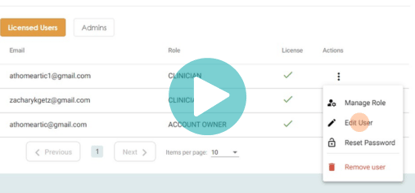
In the User Management section, click on the "Licensed Users" tab. Here, you’ll see a list of all the SLPs who currently have licenses assigned to them in your organization.
4. Find the Clinician You Want to Edit
Scroll through the list and locate the clinician whose information you need to update.
5. Click the Action Menu
Next to the clinician’s name, click on the three dots (...) to open the action menu.
6. Select "Edit User"
Click on "Edit User" to open up the details for that clinician.
7. Make Your Edits
Here, you can update the clinician’s name, email address, or change their role as needed. Once you’ve made the changes, be sure to save them.
And that’s it! You’ve successfully updated your clinician’s information. If you have any other questions or need further assistance, feel free to reach out to us! We’re here to help. 😊