![facebook_logo-01-1.png]](https://wiki.athomearticulation.com/hs-fs/hubfs/facebook_logo-01-1.png?height=50&name=facebook_logo-01-1.png)
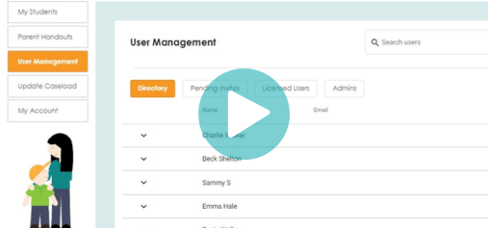
Step 1: Log In and Access User Management
- After you log in, look to the left side of your screen and click on "User Management".

______________________________________________________
Step 2: Unassign Your License (If You’re an Admin Only)
- By default, your account is set up with an assigned "clinician" license. If you’re not working directly with students and are only an Admin, you can free up this license.
- Click on “Admins”.

- Find your name, and click the toggle switch next to it.

This will remove the clinician license from your account, freeing it up for someone else who may need it.
____________________________________________________
Step 3: Adding Clinicians to the Program
- To add your clinicians:
- Click on "+Add New User".

- Fill out the form that appears.

- If you have a large list of clinicians click “Import Users” next to the “+Add New User” button and upload a CSV file using the formatting provided.

- When assigning roles:
- Admins can add and remove users and manage settings.
- Clinicians have access only to their students and caseload.

___________________________________________________
Step 4: Checking the Status of Your Users
- Once you’ve added clinicians, they’ll receive an email to register their account, just like the one you received.
- Pending Invites: Shows users who haven’t finished registration yet.

- Licensed Users: Lists all registered users. If you select a clinician’s name, you’ll see a dropdown of all the students assigned to them.

And that’s it! With these steps, you’ll have a quick start to managing your team.